What is the difference between Dictation and Agent mode?
Use Dictation to write in a text field, or ask the Agent to answer questions and carry out tasks.

Written by Nexmoe
Updated
Use Dictation when you want your speech turned into text. Use Agent mode when you want Viora to respond to a request or help you do something.
Write with Dictation
- Click the text field where you want to write.
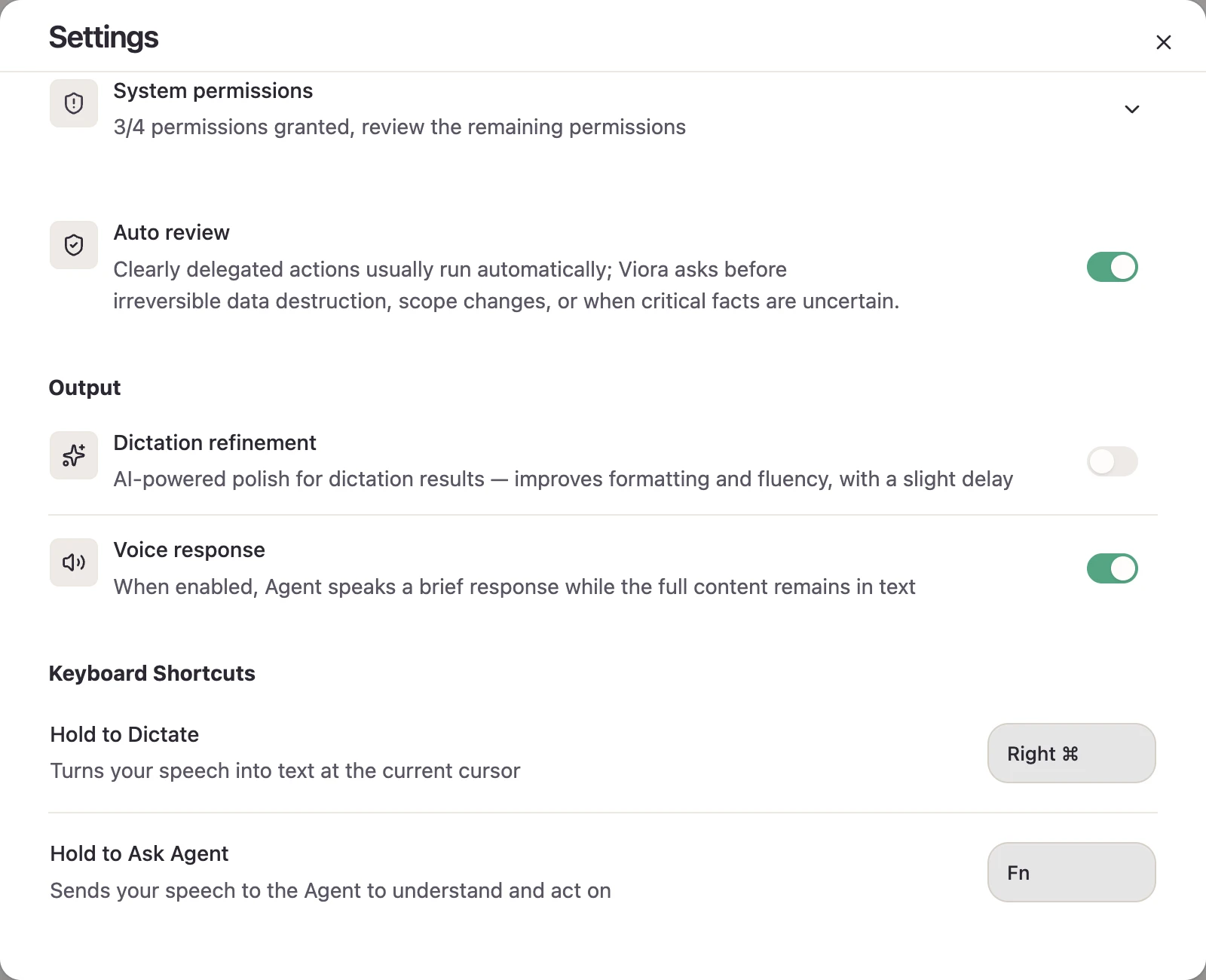
- Hold right Command (⌘) on your Mac and speak.
- Release the key when you finish.
- Review the text Viora inserts.
Viora transcribes your speech into text. For example, dictate a reply in your email composer or explain an idea in your notes app.
Dictation refinement is an optional switch under Settings → Output. It is off by default. Its setting describes improved formatting and fluency with a slight delay; review the result after turning it on.
Dictation is for the words you want to write. If you want an answer to a question, use Agent mode.
Ask the Agent
Hold Fn on your Mac, say your request, then release the key. Review the response in the Agent Card.
Try a clear request such as “Explain the difference between revenue and profit” or “Draft a short follow-up email asking for a meeting next week.”
For tasks that need an external service, first connect the relevant app. Include the recipient, date, document, or other details the task needs. Review any request for confirmation before approving an action.
Change the shortcuts
The keys above are the Mac defaults. If you have customized them, use the shortcuts shown in Viora’s settings and on-screen hints.
Open Settings → Keyboard Shortcuts to change the Dictation and Agent bindings. Each action has one shortcut field; clearing it disables that global shortcut. Choose different bindings for the two actions.
Nothing happens when I speak
Check that a microphone is connected and Viora has microphone permission. On macOS, also complete the system-permission steps shown by Viora so it can respond to global shortcuts and insert text.
For Dictation, place the cursor in an editable text field before recording. If a shortcut was cleared or changed, use its current binding. If an error appears, keep its wording when contacting support.