How do I sign in to Viora on my desktop?
Complete sign-in in your browser and return to the Viora desktop app.

Written by Nexmoe
Updated
Viora completes desktop sign-in through your browser, then returns you to the app. Use the same account as on the Viora website to access your subscription.
Sign in
- Open the Viora desktop app.
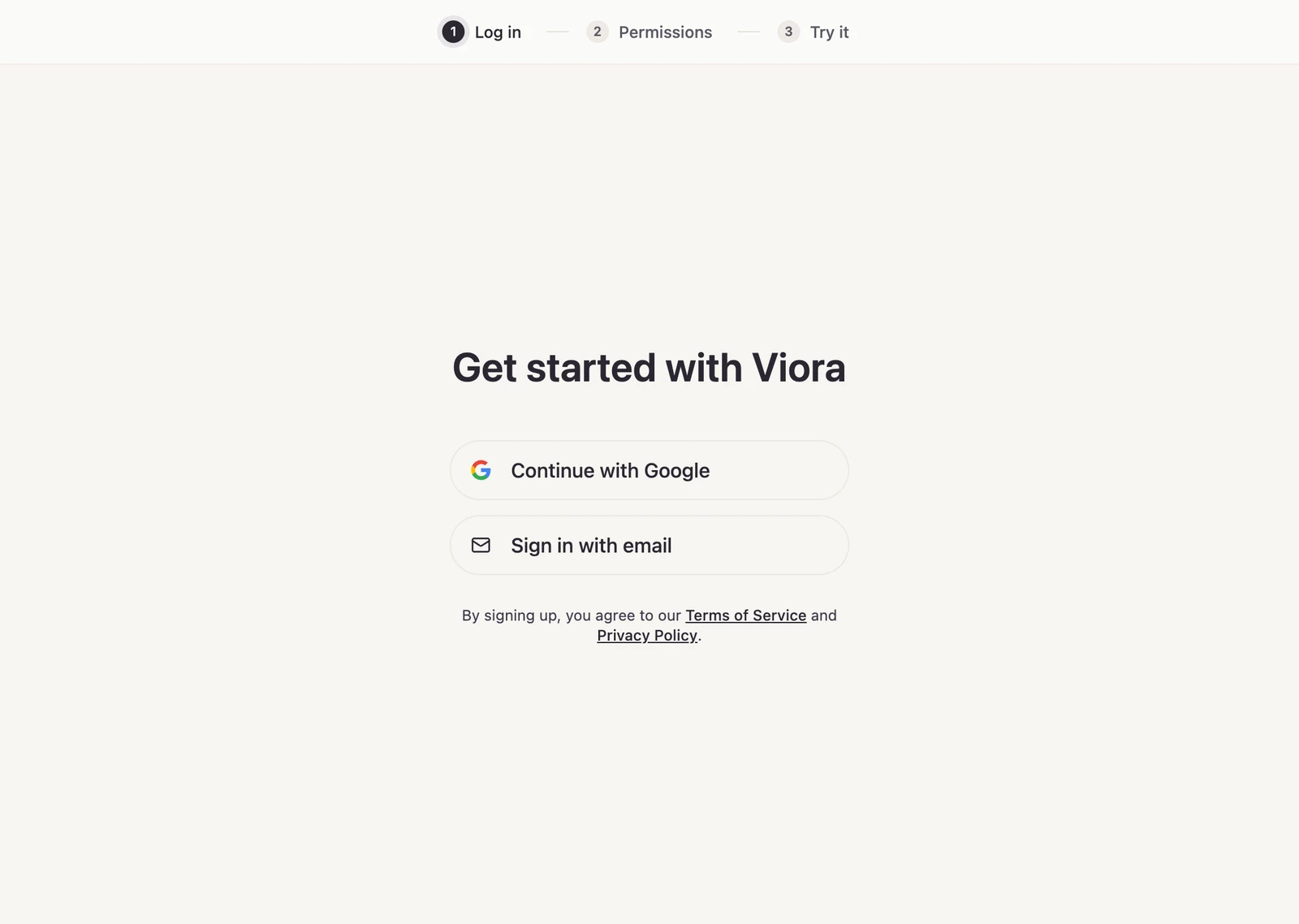
- In Viora, choose Continue with Google or Sign in with email.
- Complete the corresponding sign-in flow in your browser. For Google, choose the Google account you use with Viora. For email, enter your Viora account details.
- Allow the browser to open Viora when prompted, then return to the app.
If you do not yet have an account, follow the sign-up option on the sign-in page. For email accounts, complete any email verification requested during registration.
The browser signs in, but the app does not
Keep Viora open while completing sign-in. If your browser blocks the request to open the app, allow it and try the return action again.
If the handoff still fails, start a fresh sign-in from Viora and complete that browser flow. An old sign-in tab may belong to an earlier attempt.
If you have both Viora and Viora Preview installed, complete the flow in the app that started it. Their sign-ins and local settings are separate.
I forgot my password
For an email-and-password account, use the password-reset option on the Viora sign-in page. Check your inbox and spam folder for the reset email.
If you normally use Google, choose Continue with Google and complete account recovery through Google if needed.
My subscription is missing after sign-in
Check the account email in both the desktop app and the website. If the account is correct, follow Plan not updated after payment.
If you still cannot sign in, contact Viora support with your sign-in method, app version, and the error you see. Do not share passwords, verification codes, or sign-in links.