How do I use Dictation to write with my voice?
Use the Dictation shortcut to speak into a text field on your Mac. Learn where Viora inserts the result and how to check your text before sending it.

Written by Nexmoe
Updated
Dictation turns your speech into text and inserts it where your cursor already is. You do not copy anything, and you do not switch to another window.
Write with your voice
- Click the text field where you want to write, so the cursor is inside it.
- Hold right Command (⌘) and speak normally.
- Release the key when you finish.
- Read the text Viora inserts and edit it if needed.
Speak the way you would to a colleague. You can pause, restart a sentence, or change your mind mid-thought. You do not need to say “comma” or “period” out loud.
Dictation works in any field you can type in: an email reply, a Slack message, a Notion page, a browser form, a commit message. Viora inserts text at the cursor rather than integrating with each app one by one, so behavior can still depend on which app has focus and which macOS permissions you granted.
Automatic polish
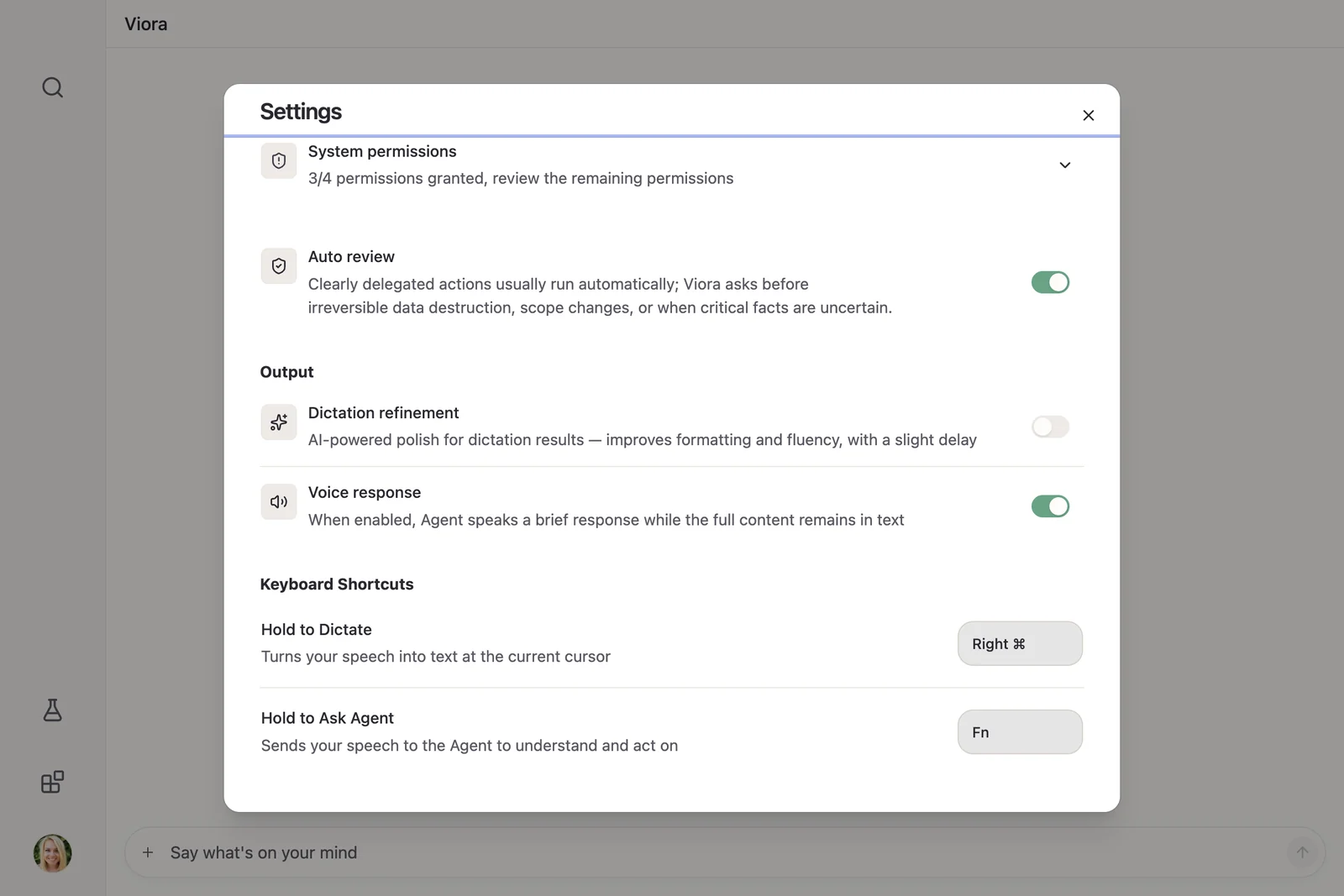
Viora always runs a polish pass that improves formatting and fluency before inserting your text. There is no setting to turn it off.
When Viora’s display language is Chinese, Settings → Voice Input also has Replace punctuation with spaces, which changes how punctuation is written out. Voice response in Settings → Agent lets the Agent speak a short reply.
Review your recent dictations
Open the account menu in the sidebar and choose Dictation to see your recent dictation records. You can search the history, copy a transcript, or delete records you no longer want.
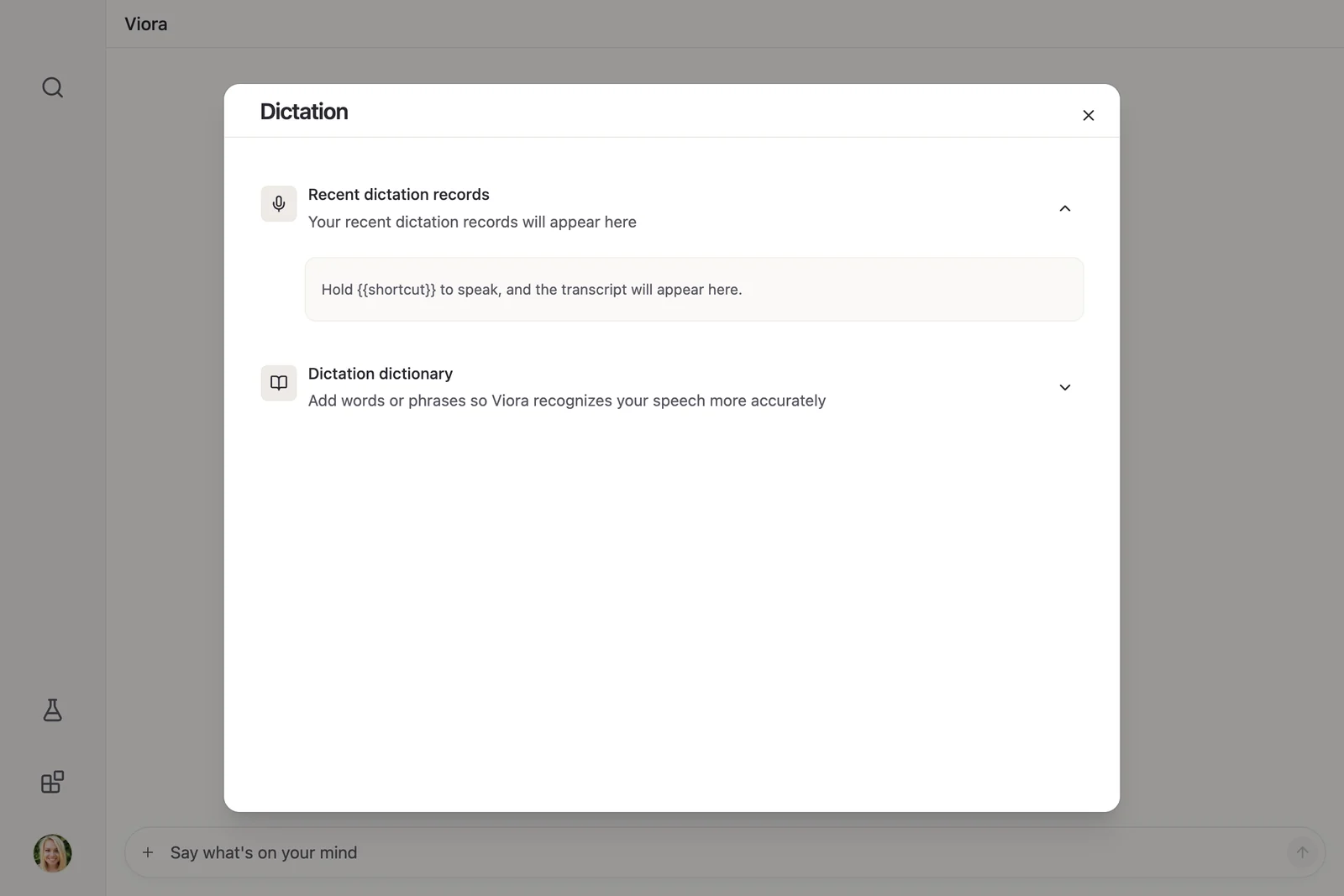
If Temporary mode is on in Settings, new tasks and transcripts are not written to local history. Turn it off if you want your dictations saved.
Change the Dictation shortcut
Right Command is the Mac default. To use a different key, open Settings → Keyboard Shortcuts and edit Hold to Dictate. Clearing the field disables that global shortcut.
Give Hold to Dictate and Hold to Ask Agent different keys, or one of them will never trigger.
Nothing appears when I speak
Check the cursor first. Dictation needs an editable text field in focus; if you are on a page with nothing selected, there is nowhere to insert text.
Then check that a microphone is connected and that Viora has microphone permission. On macOS, also finish the system-permission steps Viora shows you, because global shortcuts and text insertion both depend on them.
If you changed or cleared the shortcut, use its current binding from Settings → Keyboard Shortcuts. If an error message appears, keep its exact wording when you contact support.