How do I edit selected text with my voice?
Select text in a Mac app and tell Viora how to change it. Rewrite, shorten, or adjust the tone, then review the edited text before using it.

Written by Nexmoe
Updated
Most writing is rewriting. When you already have a draft that is too long, too rough, or the wrong tone, select it and tell Viora what to change instead of retyping it.
Rewrite a draft
- Select the text you want to change. It can be a sentence, a paragraph, or a whole section.
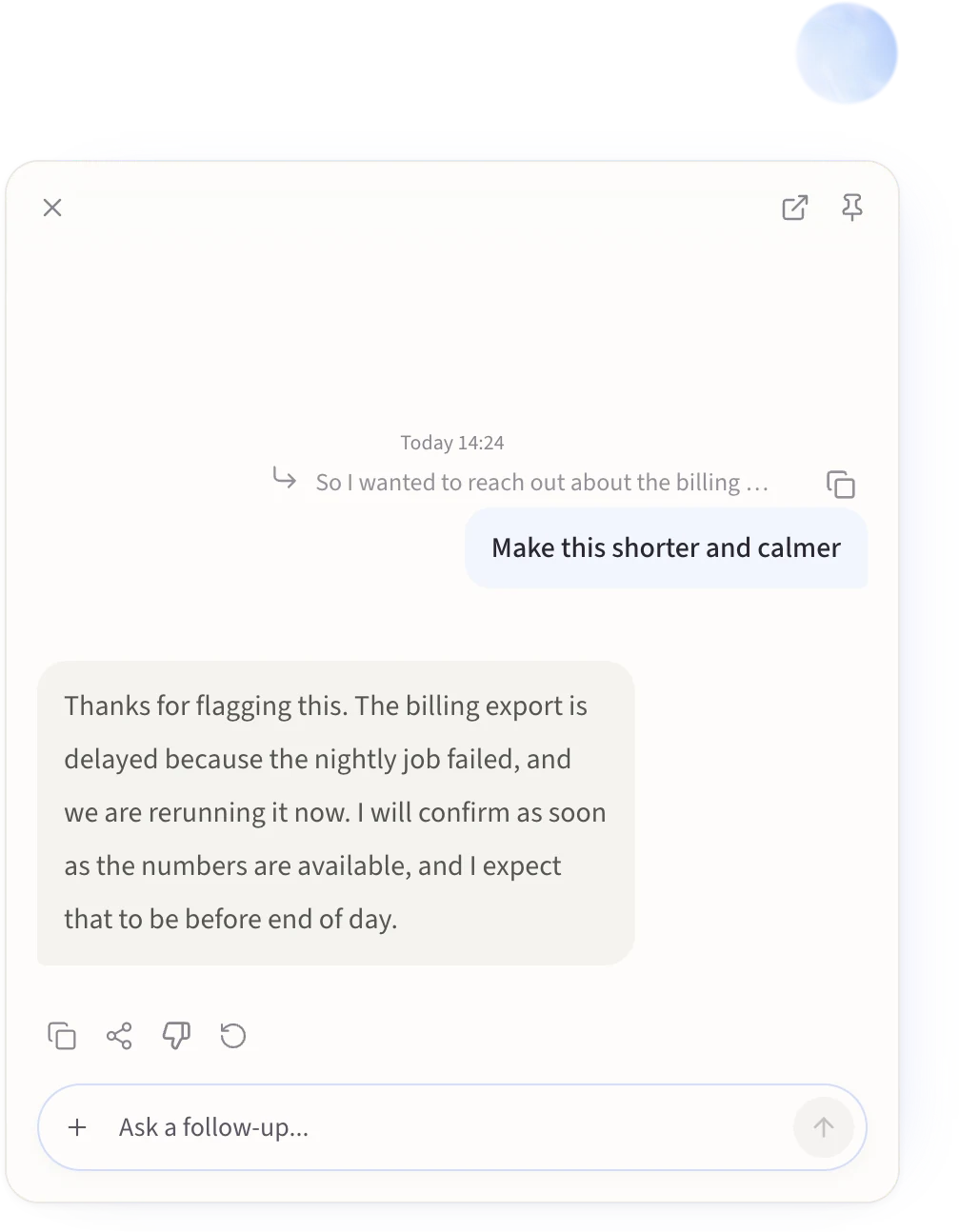
- Hold Fn and say what should change, such as “make this shorter and calmer.”
- Release the key and read the result.
- If the rewrite is not what you wanted, press Cmd+Z to undo and try a clearer instruction.
Viora shows the passage you selected in the Agent Card, along with the app it came from, so you can confirm it picked up the right text.
Instructions that work well
Say what you want changed, not just that something is wrong. Compare “fix this” with these:
- “Make this shorter.”
- “Make this calmer and more direct.”
- “Turn this into three bullets.”
- “Keep the meaning but remove the repetition.”
- “Rewrite this as a short customer reply.”
- “Translate this to Japanese.”
One instruction at a time is easier to review than five stacked together. If you want several changes, run several passes.
Where it works
Selected-text editing works in the same places as Dictation. If you can select text in a field and type into it, you can usually rewrite it by voice: Mail and webmail, Slack and Messages, Notion and Google Docs and Apple Notes, code editors, browser text areas, support tickets, and internal forms.
Behavior can still vary by app. Some apps restrict text selection or block programmatic replacement, and macOS permissions affect what Viora can read and write.
Dictation, editing, and asking
All three use a held shortcut, and Viora chooses what to do from the context. Selected text usually means an edit; no selection and a question usually means an answer.
| You want | What to do | What you get |
|---|---|---|
| New text | Put the cursor in a field, hold the Dictation shortcut | Your words inserted at the cursor |
| Better text | Select the text, hold Fn, say the change | The selection replaced with the rewrite |
| An answer | Select or look at the content, hold Fn, ask | An answer in the Agent Card |
The original text came back wrong
Undo with Cmd+Z first, so you get your draft back before trying anything else. Most Mac apps restore the original selection in one step.
If nothing happens at all, check that the text really is selected and that Viora has the macOS permissions it asked for. If the wrong passage was used, look at the Selection chip in the Agent Card to see what Viora actually read, then reselect and try again.
Review every rewrite before you send or publish it. Viora is cloud-assisted, so task content may be processed by Viora backend systems; do not use it as unchecked automation on sensitive text.