How does Memory work in Viora?
Learn how Viora remembers context and preferences from your work. Review, edit, or clear saved memory and decide what should guide future tasks.

Written by Nexmoe
Updated
Memory is how Viora carries your context, preferences, and working style across conversations, so you do not repeat the same background every time. It is a Pro feature.
How it builds up
There is no setup step. Memory fills in as you use Viora.
- You mention something in conversation, such as a team name, a term your company uses, or a preference like shorter replies.
- Viora saves it to your memory profile.
- Later requests use that context, so the output lands closer to how you work.
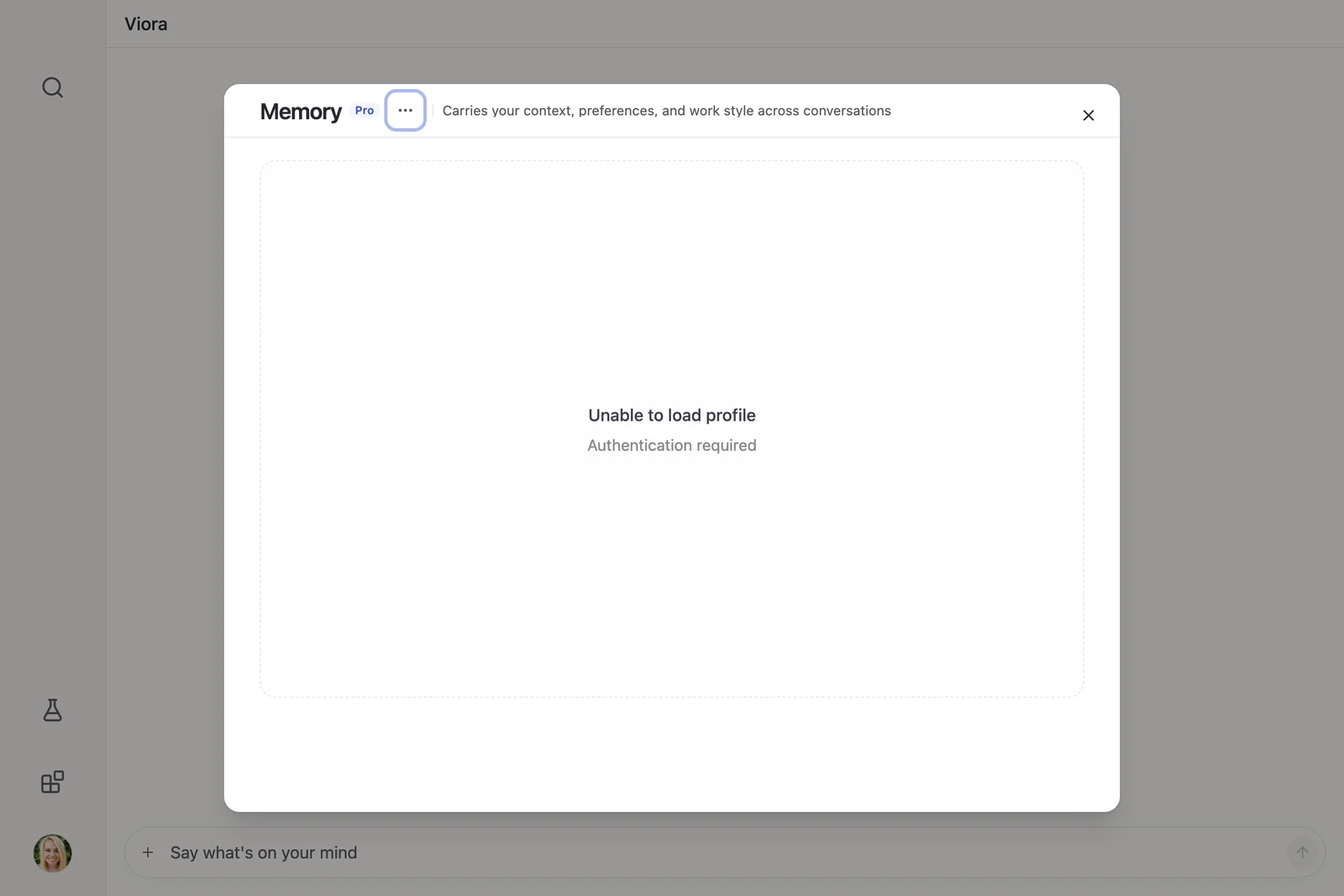
You can also add or correct something directly. Open the account menu in the sidebar, choose Memory, type it into the field at the bottom (Tell Viora what to remember or correct), and press Enter. Use Shift+Enter for a new line. When the send button turns into a check mark, the summary above has been rewritten in place.
What it keeps
Memory is organized around who you are and how you work, not raw transcripts. Opening Memory shows a short written summary of what Viora knows about you, with the date it was last updated.
Choose Manage in the top-right corner to see what that summary is built from:
- About you — quick facts such as where you work or what you do.
- Your tools — the apps and workflows you use.
- Your many sides — the different roles and contexts you show up in.
- Recent events — the events behind what Viora learned. Click one to see what you said at the time, so you can trace why something was remembered.
Review, edit, and clear
Nothing in Memory is hidden from you. Open Memory and choose Manage to review every item. Memory refreshes on its own, so there is no refresh button.
To remove one wrong item without discarding everything, hover over it, click the trash icon, then click Confirm. Clear all memories… at the bottom of the list removes traits and events together and cannot be undone.
Memory and the personal dictionary
These solve different problems, and it is worth knowing which one you need.
| Personal dictionary | Memory | |
|---|---|---|
| Main job | Recognize words correctly | Reuse your context and preferences |
| Good for | Names, acronyms, product terms | Preferences, background, working style |
| Scope | A word or phrase | A fact, habit, or way of working |
| How it fills | You add terms | Builds from conversation, or you add it |
If Viora keeps mishearing a name, that is a dictionary fix. If Viora keeps writing in the wrong tone, that is a Memory fix.
Free and Pro
Memory across sessions is part of Pro. On the Free plan the panel shows an upgrade notice, and existing memories are kept rather than deleted, so upgrading later restores access to them.
To change plans, see managing your subscription.
Privacy
Viora is cloud-assisted, not offline. Its privacy materials state that desktop task content may be processed through Viora backend systems when large-model processing is needed, and that Viora does not sell user data and does not use voice, text, or User Content to train models.
If you do not want a task written to history at all, turn on Temporary mode in Settings before starting it. For the full terms, read the Viora Privacy Policy.